Add Version History to Your Editor: Save, Preview and Restore (2026)
A step-by-step video tutorial: add version history to the Eddyter editor in a Next.js app. Give each document an ID, save versions from your own Save button, then preview and restore any draft.
Your users will delete the wrong paragraph. It happens. In this tutorial you add version history to an Eddyter editor in a Next.js app, so they can save, preview and restore any draft. It takes about two minutes, and the snapshots are stored on Eddyter's backend, so there is no database work for you.
Plan: version history is included from the Pro plan onwards (Pro, AI BYOK and AI Pro Managed).
Code: github.com/EddyterAI/examples, tutorials/02-version-history. It builds on Tutorial 1: Add an AI rich text editor to Next.js.
What you get
Version history is built into Eddyter. The editor toolbar has a history button, and a side panel lists every saved version of the document, with Preview and Restore on each one.
Step 1: Give each document an ID
Pass your record's own ID as documentId, like a note ID or a post ID, and use the same one every time that document opens. That is how each document gets its own history.
If you leave documentId out, the editor uses the page URL. That is fine with one document per page, but if several documents share a URL, always pass a real ID.
Step 2: Save a version from your Save button
Create a ref and pass it to the editor. In your save handler, store the content in your own backend first, then call saveVersion with the record's ID. For a brand-new record, this is what captures version 1.
Step 3: Save and name versions
Each time you click Save, a new version appears in the panel. You can name a version in the panel, or in code with a label: saveVersion({ documentId, label: 'Before review' }). Saving the same content twice does not create a duplicate version.
Step 4: Preview a version
Click Preview on any version. The editor shows that version as read-only, and Back to current returns you to your draft.
Step 5: Restore a version
Click Restore and confirm. The old version becomes the latest, and Eddyter keeps a snapshot of what you had before, so a restore can itself be undone. Nothing is lost.
Recap
- Pass a
documentIdto the editor. - Call
saveVersion({ documentId })from your Save button, after saving to your backend. - Let your users preview and restore from the history panel.
Next steps
- Eddyter documentation
- Full code for this tutorial on GitHub
- Compare plans
- Next tutorial: the Eddyter MCP connector, so Claude can set all of this up for you.
Show the full transcriptHide the transcript
Your users will delete the wrong paragraph. It happens. In the next three minutes, we'll add version history to an Eddyter editor, so they can save, preview and restore any draft. Let's build it. Version history is built into Eddyter. There's a history button in the toolbar, and a side panel that lists every saved version. The snapshots are stored on Eddyter's backend, so there's no database work for you. It's included on the Pro plan and above. It needs one thing from you: a document ID. Pass your record's own ID, like a note ID or a post ID, and use the same one every time that document opens. That's how each document gets its own history. Now connect your Save button. Create a ref, pass it to the editor, and in your save handler, store the content in your own backend first. Then call saveVersion with the record's ID. For a brand-new record, this is what captures version one. Let's try it. Each time we click Save, a new version appears in the panel. You can also name a version, here, or in code with a label. And saving the same content twice won't create a duplicate. Want to look before you change anything? Click Preview. The editor shows that version as read-only, and Back to current returns you to your draft. To go back for real, click Restore, and confirm. The old version becomes the latest, and Eddyter keeps a snapshot of what you had before. Nothing is ever lost. That's version history: pass a document ID, call saveVersion from your Save button, and let your users preview and restore. The full code is linked below. Next time: the Eddyter MCP connector, so Claude can set all of this up for you. Find everything at eddyter.com.
Which Eddyter plans include version history?
Version history is included from the Pro plan onwards: Pro, AI BYOK and AI Pro Managed.
Do I need my own database to store versions?
No. Version snapshots are stored on Eddyter's backend. You only store the current content in your own backend, as you would anyway.
What is documentId used for?
It ties a history to one document. Pass your record's own ID, such as a note or post ID, and use the same one every time that document opens. Without it, the editor uses the page URL.
How do I save a version from my own Save button?
Pass a ref to the editor, save the content to your backend, then call editorRef.current.saveVersion({ documentId }). Add a label to name the version. Saving unchanged content does not create a duplicate.
Does restoring a version delete my current draft?
No. Before restoring, Eddyter saves your current content as a snapshot, and later versions stay in the list, so a restore can itself be undone.
 2:56Getting startedVideo guideAdd an AI Rich Text Editor to Next.js in 3 Minutes (2026 Tutorial)A step-by-step video tutorial: add the Eddyter AI rich text editor to a Next.js App Router project, with toolbar, slash commands, tables and AI writing, and keep the content as HTML in React state.
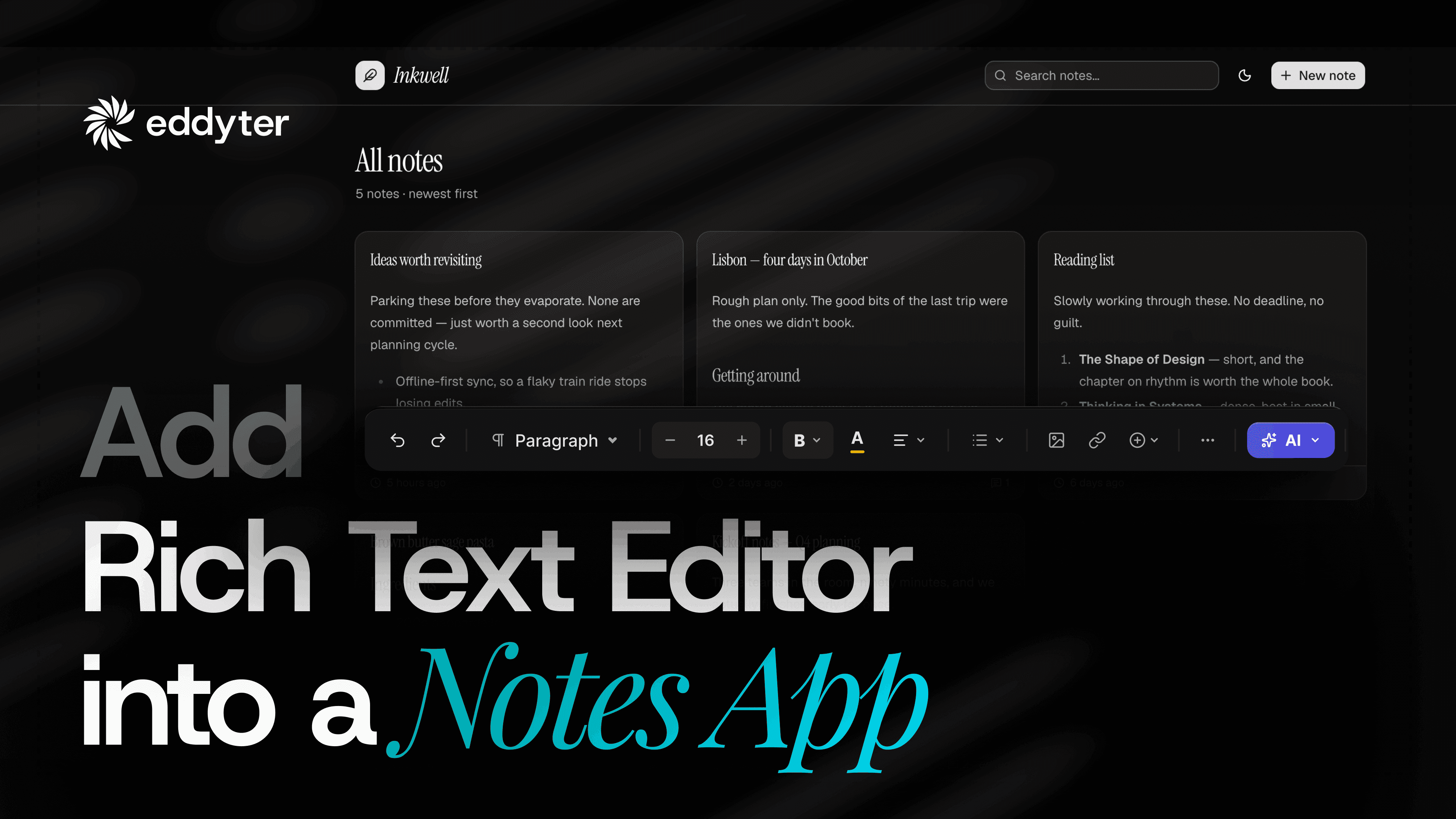 7:05IntegrationVideo guideIntegrate a Rich Text Editor into a Notes App — Tables & Dark ModePaste a table into a plain text field and it flattens. Paste it into an editor and it arrives whole. This walkthrough does the same paste twice in one notes app, opens both results side by side, then switches the app to light mode and watches the editor re-theme itself.
 IntegrationVideo guideIntegrate Eddyter in Less Than 10 Minutes: Step-by-StepLearn how to integrate Eddyter into your app in less than 10 minutes. Step-by-step 2026 guide for React, Next.js, and modern web apps. Real code, no fluff.